What it does
The marker tools of the CAD add-in, in your browser: pick a profile, ArUco Extrude, then print.
The profile
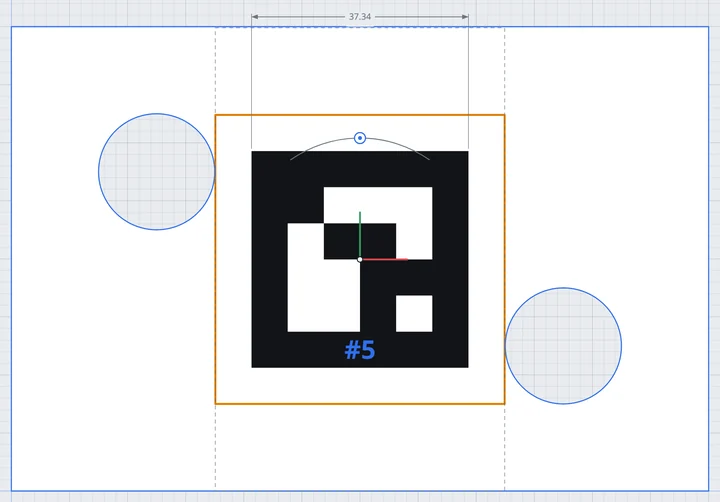
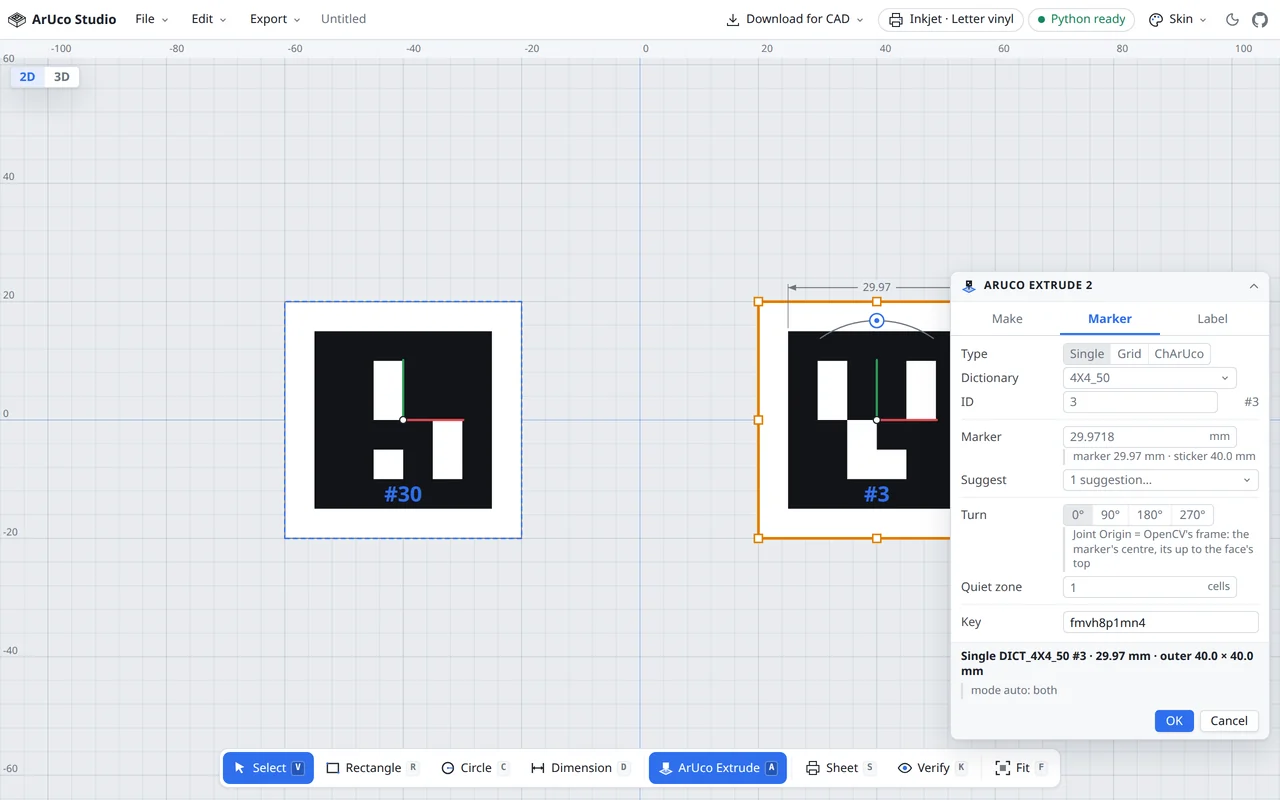
A marker starts from a profile, the way an extrude does. Click inside a face and press A (ArUco Extrude): the marker is placed for you in the largest clear spot, avoiding the holes or ignoring them. Want it somewhere exact? Draw a rectangle (R) and double-click it to pick its outer edges as the profile: the marker goes exactly there. The ArUco Extrude panel opens beside the marker.

Single, Grid or ChArUco
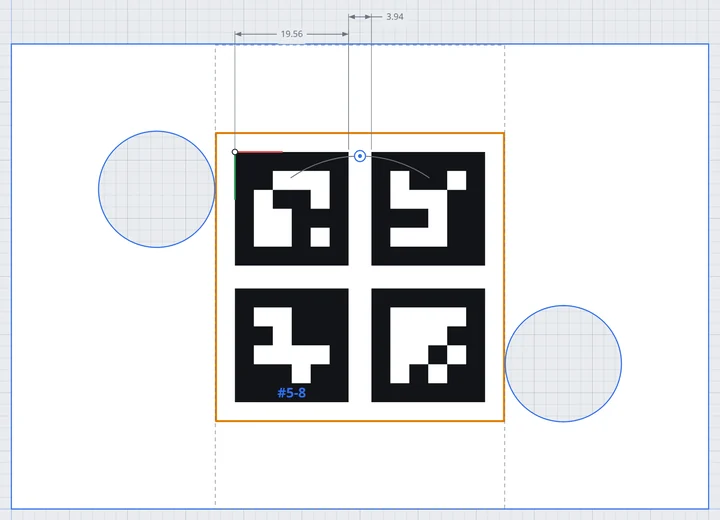
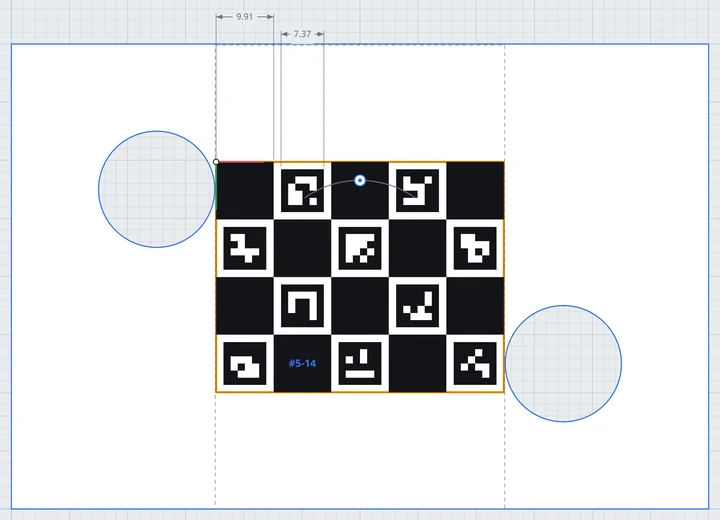
One word switches the type. A grid lays out several markers with consecutive ids; a ChArUco board puts the markers in a checkerboard for camera calibration. Every OpenCV predefined dictionary is there, AprilTag included.
Driven or set: every value is real
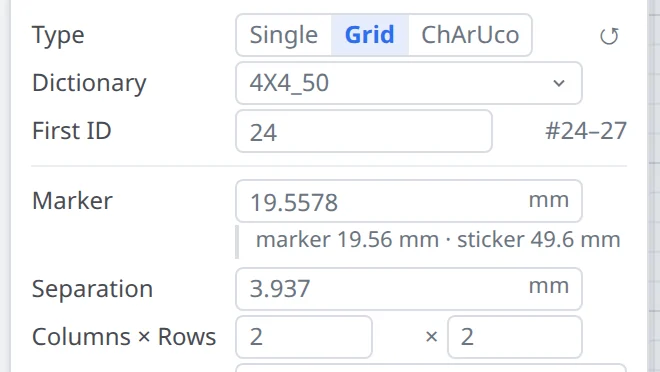
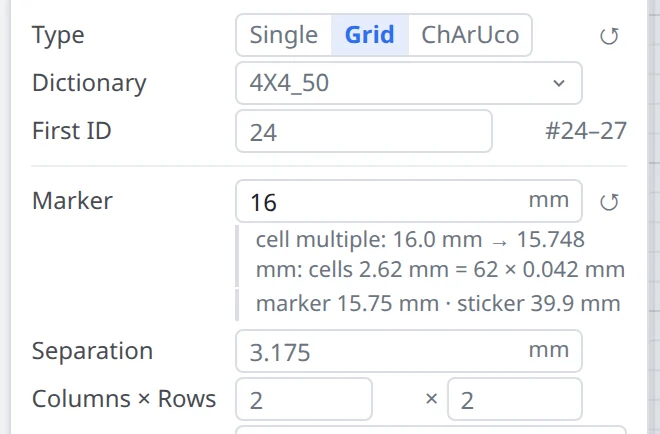
No “Auto” switches. Each field shows the actual value: in grey when the core worked it out, in black once you type it. A typed value is kept until you press ↺, which hands it back to the core. A value that no longer fits turns red but never blocks you.
Auto id
Every marker gets its own id without you keeping a list. A stable key per marker is hashed to a preferred id, and the file keeps a ledger, so adding or removing other markers never moves an id already given out. Type an id to override it; a clash shows red under ID.
Trim
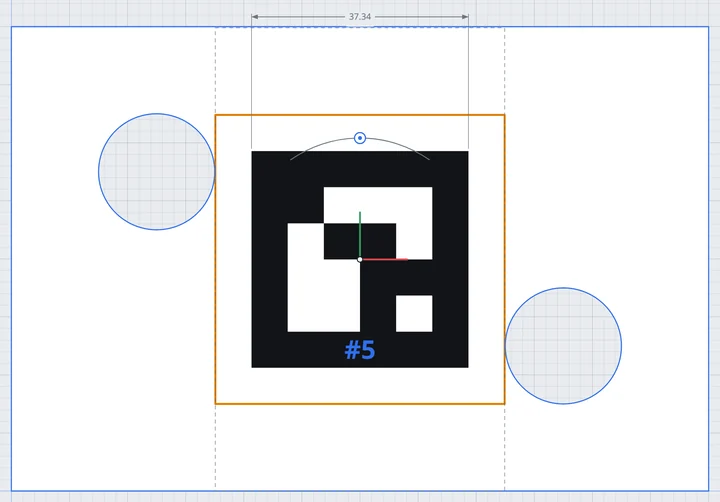
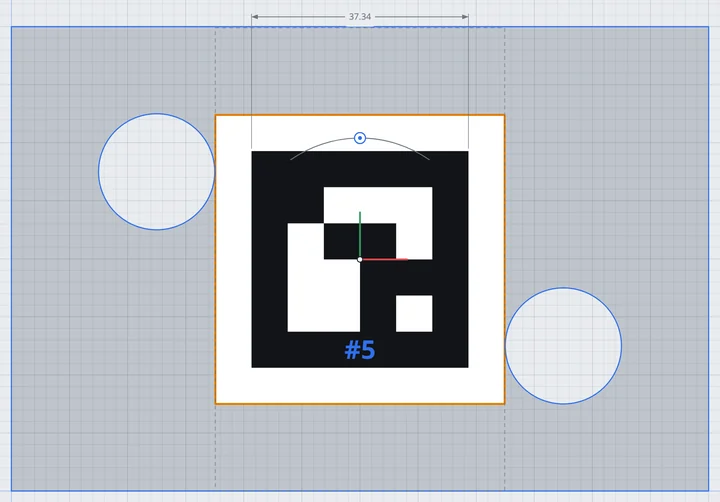
What the sticker is cut to: the profile (the whole face, holes cut out) or just the marker and its quiet zone. Everything inside the cut is white. For a rectangular sticker, draw a rectangle profile and trim to Profile.
Auto layout: Fewest cuts or Fewest sheets
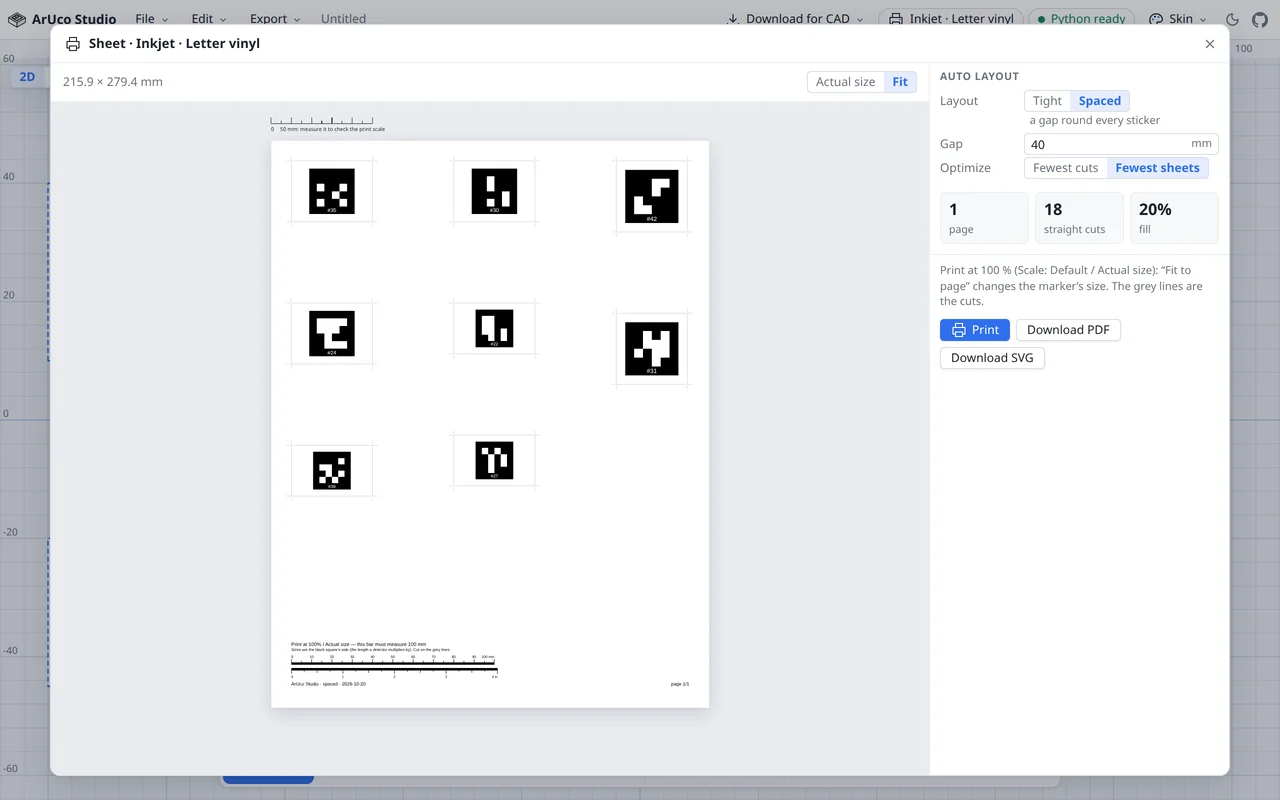
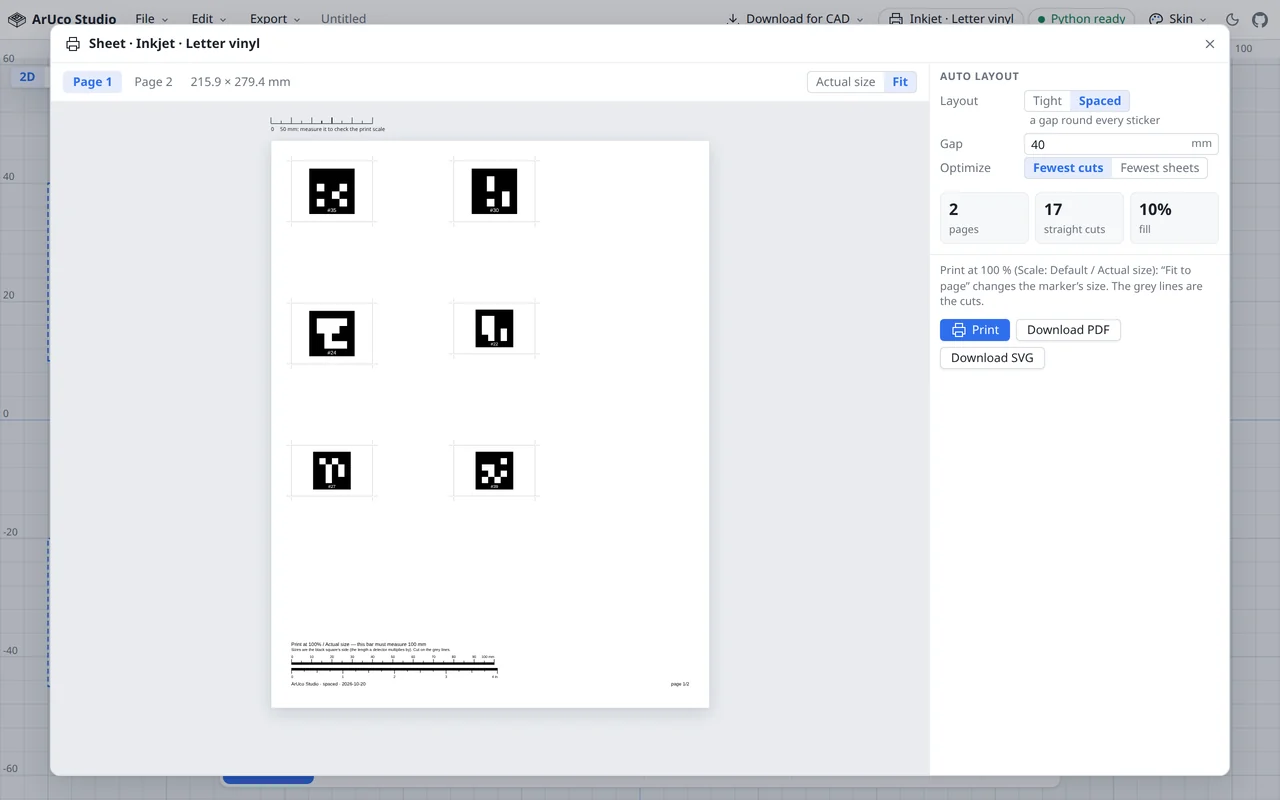
The Sheet packs every sticker onto the page for you. Every cut runs edge to edge, so scissors or a paper trimmer can follow it. Tight lets neighbours share cut lines; Spaced leaves a gap round each one. Then pick what matters: fewer straight cuts, or fewer pages.
Print at true scale
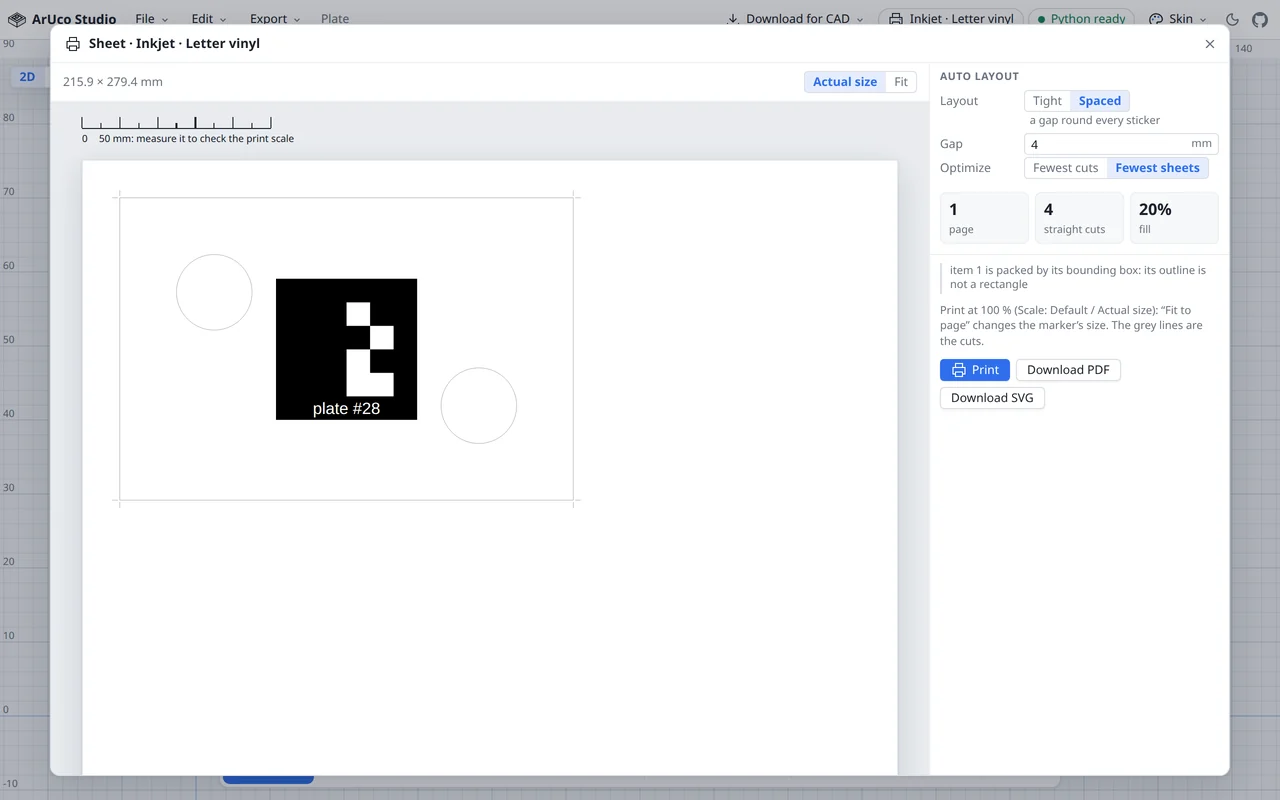
The page is drawn in real millimetres, with a 50 mm scale bar to check against a ruler. Print it, or download the page as PDF or SVG.
Verify with OpenCV, in the browser
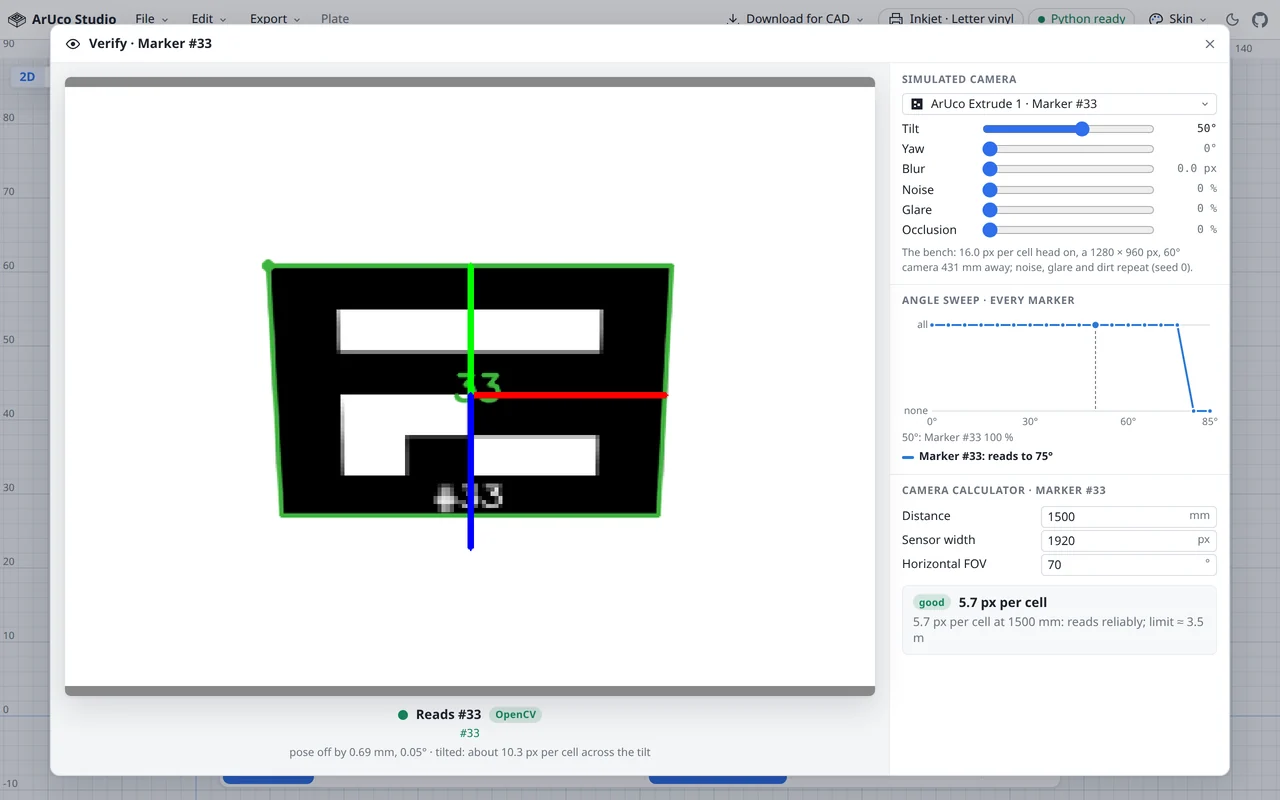
OpenCV's own ArUco detector reads a simulated camera view of exactly what you will print. Drag tilt, yaw, blur, noise, glare and occlusion; an angle sweep runs for every marker, and a camera calculator turns distance, resolution and field of view into pixels per cell and a verdict.
Philosophy
Make markers where you CAD
A marker is tied to a physical place: the part it is stuck on, where on that part, and how that part sits in the rest of the assembly. So it belongs in the CAD model, next to the part, not in a separate generator whose output you copy across and line up by hand. That is why the core is CAD-free and the CAD add-ins are thin shells over it. Try Online runs the same core, to try it out and to print without CAD.
The principles the Studio is built on, with the line each one comes from.
Work at the level of intent
Before, a marker meant sizing by hand, pasting into a drawing tool to print, and keeping id ranges straight yourself.
“now with AI you can basically build the tools that make this so much easier so you can work at the level of intent!”
Zach Yamaoka, project notes
A functional, CAD-free core
One pure Python core plans every marker. The Studio, the Fusion add-in and the exports only draw what it says.
“Aruco Generate should be done where you CAD”
Zach Yamaoka, project notes
Auto builds on top of manual
Suggestions and auto layout are a starting point. A typed value always wins, and a warning never blocks you.
“You should always get a manual fall back”
Zach Yamaoka, project notes
Good defaults
Every field starts with a sensible value, shown in grey, so the first marker takes one click.
“cover like 80% of the use cases”
Zach Yamaoka, project notes
Simple, focused tools
Markers, labels, layout, verify. Colour boards and the rest are out of scope.
“We don't do everything but we do a couple of things really well!”
Zach Yamaoka, project notes
WYSIWYG
The label on the sketch is the label on the page is the label in CAD.
“What appears on the page should always match exactly what appears in the CAD.”
Zach Yamaoka, project notes
Still works in 10 years
No account, no server, no heavy framework under the sketch: a static site and a standard-library core (OpenCV only for Verify).
“this will still work in 10 years.. as long as there are still aruco markers.”
Zach Yamaoka, project notes
Download
Install it in your CAD program, or use it online. Nothing to download yet: here is where each one stands.
Planned
Q&A
How do I print at true scale?
Print at 100 % (Scale: Default or Actual size). “Fit to page” changes the marker’s size. Every page carries a 50 mm scale bar: measure it with a ruler before you cut.
Which dictionary should I use?
Start with the default, 4X4_50. Fewer bits means bigger cells for the same marker size, so a 4 × 4 marker reads from further away. Move to a bigger dictionary (4X4_100 up to 1000, or 5X5, 6X6, 7X7) only when you need more ids than it has. Every OpenCV predefined dictionary is listed with its id count, AprilTag 36h11 included.
Does anything leave my browser?
No. There is no server: the Python core runs on your machine through Pyodide (WebAssembly). The network loads the Studio, Pyodide and the core from arucostudio.com, plus numpy and OpenCV (about 13 MB) from the jsDelivr CDN the first time you open Verify. Your design stays in the page until you Save it to a file; your own presets and camera settings are kept in this browser’s local storage.
Will a camera read it?
Open Verify: OpenCV’s detector reads a simulated camera view of the marker exactly as planned, through tilt, blur, noise, glare and occlusion, and the camera calculator says how far away it should still read. It is a simulation, so a test with your real camera is still the last word.
Is it open source?
The source is public on GitHub. A licence has not been chosen yet.
Can I use it in Fusion 360?
Not yet. The Fusion 360 add-in is being rebuilt on this same Python core; watch the GitHub Releases page for it (see Download). Until then, Try Online and export the marker as a true-size SVG or the page as a PDF.
What does it cost?
Nothing. Try Online is a static website: no account, no sign-up.